Troubleshooting Guide
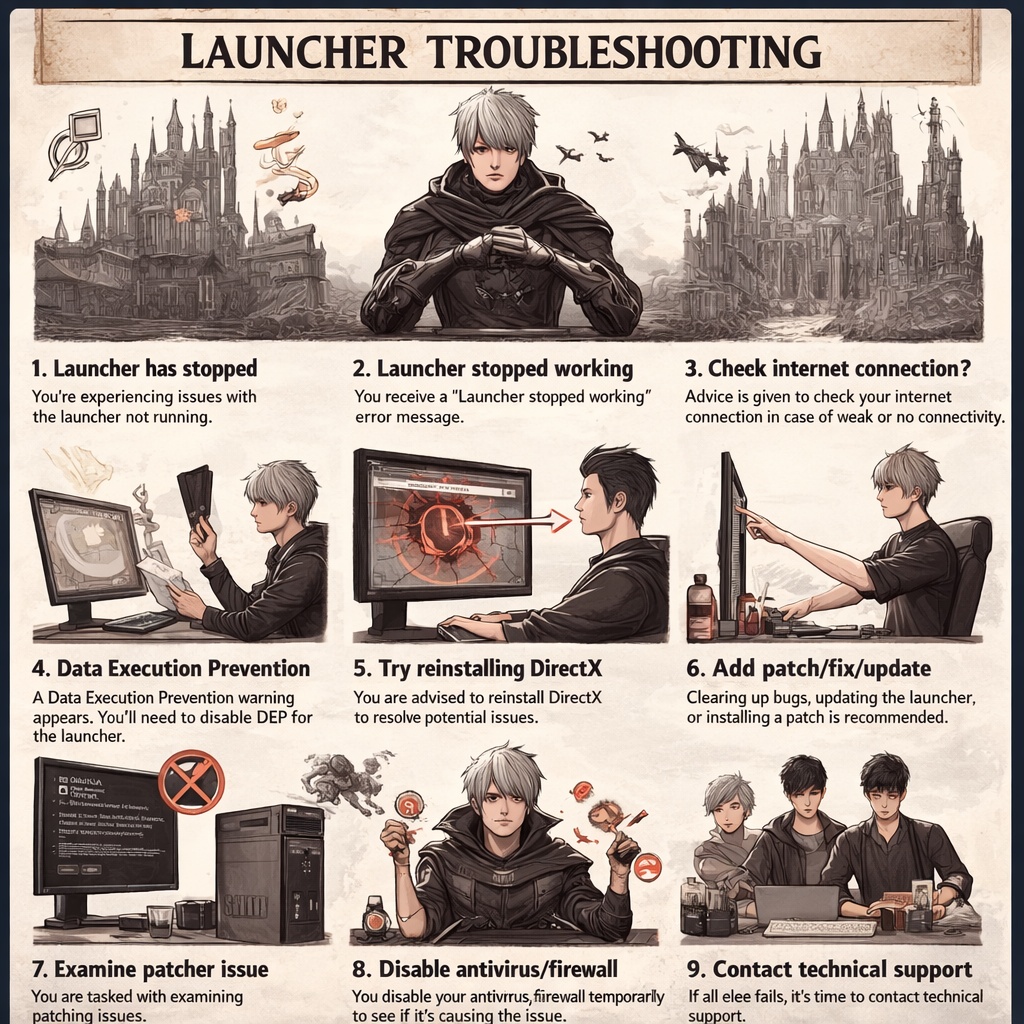
Launcher Has Stopped Working
For those experiencing issues with the client, launcher, or patcher, please follow these steps to resolve the problem.
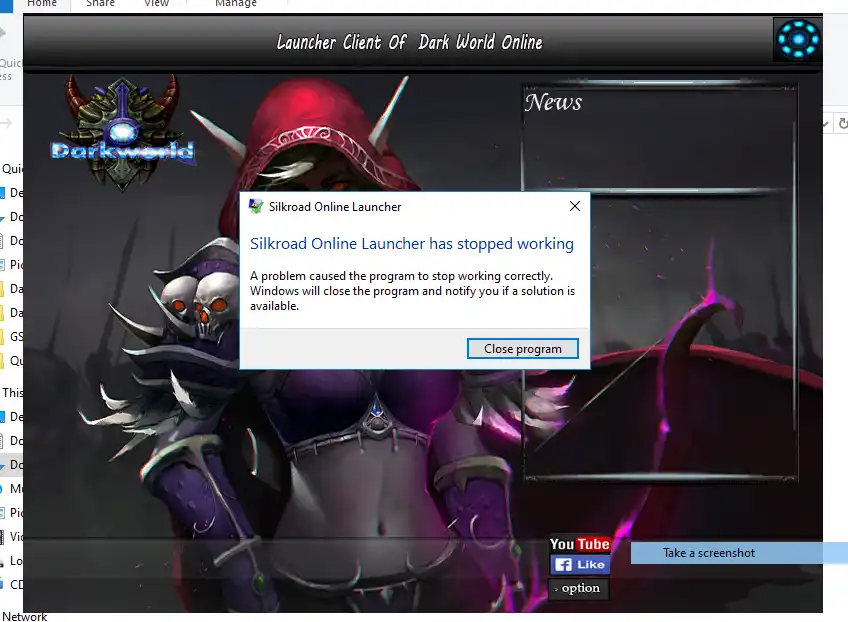
Step 1: Open Run
Press Start + R to open the Run dialog box.
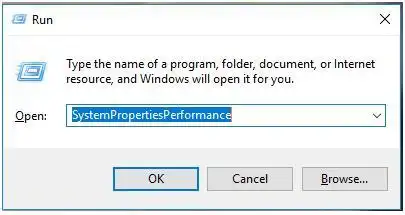
Step 2: Enter Command
Type the following command and press Enter:
SystemPropertiesPerformance
Step 3: Data Execution Prevention
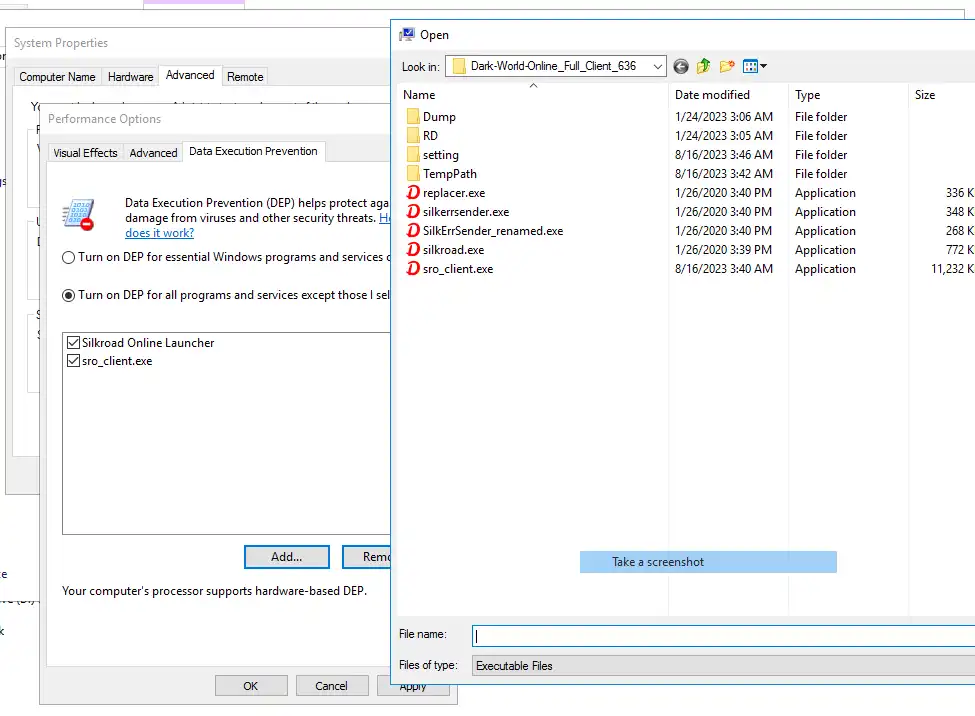
Click on the Data Execution Prevention tab.
Step 4: Enable DEP for Specific Programs
- Select the second option: Turn on DEP for all programs and services except those I select.
- Click on Add.
Step 5: Add Specific Executables
Add the following executables from your Dark World Online folder:
- Replacer.exe
- sro_client.exe
- DWS_Client.exe
Step 6: Restart Your Computer
Restart your computer and try to log in again.
Windows Defender Removing darkworld.dll
Why Is This Happening?
Some players may experience Windows Defender automatically removing darkworld.dll.
This file is part of the official Dark World Online security filter system. It uses advanced protection methods (VMProtect and memory hooks) to prevent bots, cheats, and packet manipulation.
Due to the aggressive protection mechanism, Windows Defender may incorrectly classify it as a false positive.
Temporary Safe Solution
Please follow these steps to safely restore and exclude the game folder:
- Open Windows Security
- Go to Virus & Threat Protection
- Click Protection History
- Restore darkworld.dll if it was quarantined
- Go back and click Manage Settings
- Scroll to Exclusions
- Click Add or Remove Exclusions
- Add the entire Dark World Online folder
⚠️ Do NOT disable your antivirus completely. Only exclude the game folder.
Official Status
We are currently working with security vendors to reclassify this file properly. Thank you for your patience and understanding.
Additional Guides
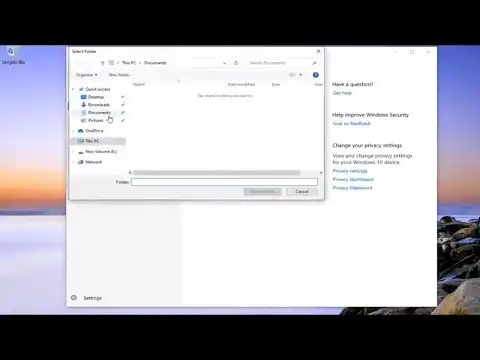
How to Exclude Files from Windows Defender
Watch this video tutorial to learn how to exclude a file or folder from Windows Defender scan:
Resolving Patch Issues
1. Clear Patcher Cache: Navigate to your Dark World Online directory and delete the temppatch folder.
2. Run as Admin: Right-click on the .exe file and select Run as administrator.
3. Check Internet: Ensure you have a stable internet connection.
Fixing Client Crashes
1. Update Drivers: Ensure your graphics drivers are up to date.
2. Graphics Settings: Lower the in-game graphics settings.
3. Verify Files: Use the game's launcher to verify the integrity of your game files.